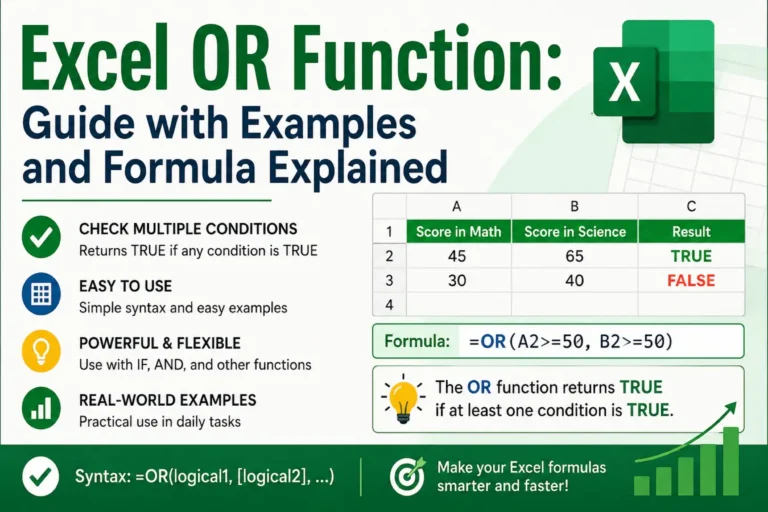
Excel OR Function is one of the most useful logical functions in Microsoft Excel. It helps users test multiple conditions at the same time. If any condition is true, the function returns TRUE.
Many Excel users work with large datasets every day. They often need to check several criteria quickly. The OR function makes this task simple and efficient.
Whether you are a student, office worker, accountant, or business owner, understanding the Excel OR Function can save time and reduce errors.
In this guide, you will learn what the OR function is, how it works, practical examples, common mistakes, and expert tips. By the end, you will know exactly when and how to use this powerful Excel function.
Quick Summary Box
- Excel OR Function checks multiple conditions.
- Returns TRUE if at least one condition is true.
- Returns FALSE only when all conditions are false.
- Commonly used with IF statements.
- Helps simplify logical calculations.
- Useful for reporting, analysis, and data validation.
- Formula syntax:
=OR(logical1, logical2, ...)
What Is the Excel OR Function?
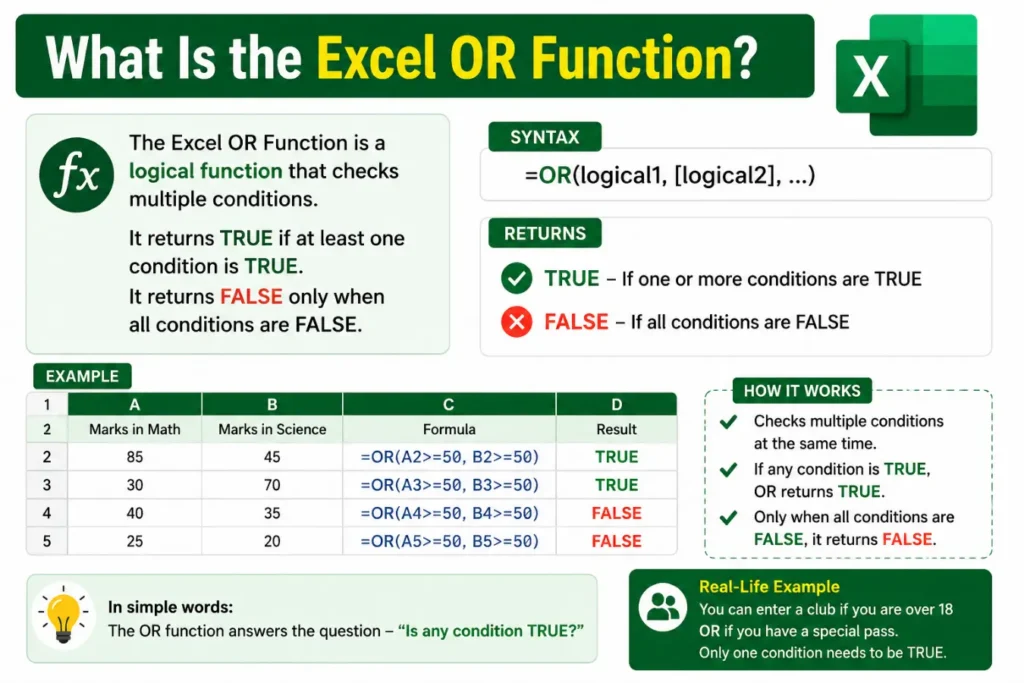
The Excel OR Function is a logical function.
It checks multiple conditions and returns:
- TRUE if one or more conditions are true
- FALSE if all conditions are false
Syntax
=OR(logical1, [logical2], ...)Arguments
| Argument | Description |
|---|---|
| logical1 | First condition to test |
| logical2 | Additional conditions (optional) |
You can test up to 255 conditions in newer Excel versions.
How Does the Excel OR Function Work?
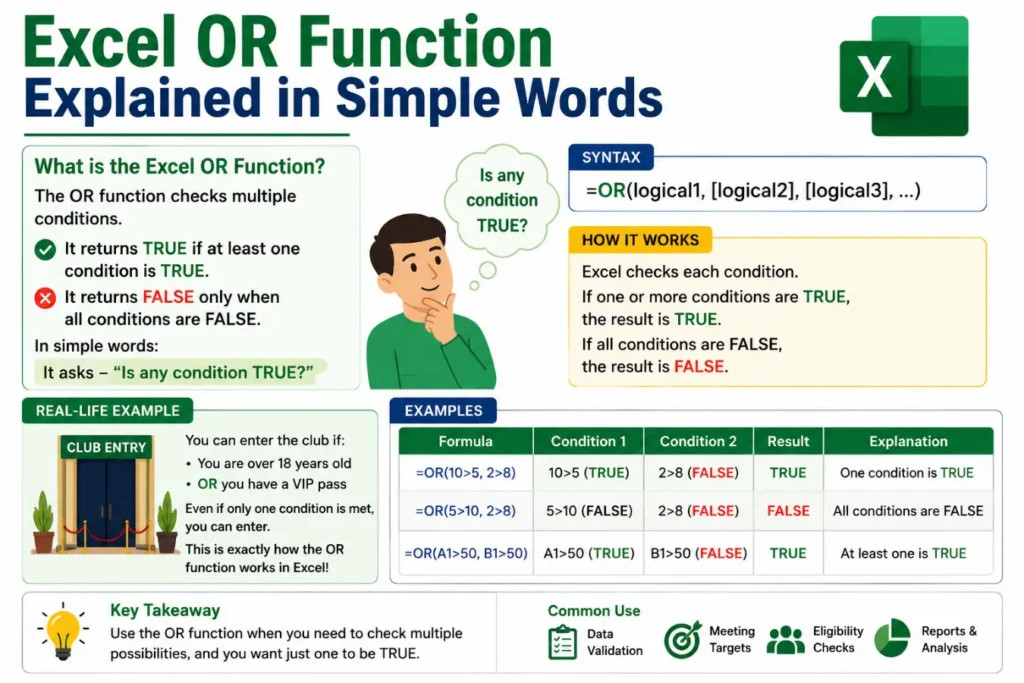
The OR function evaluates each condition.
It looks for at least one TRUE result.
Example
=OR(10>5, 2>8)Result:
TRUEWhy?
- 10 > 5 = TRUE
- 2 > 8 = FALSE
Since one condition is TRUE, Excel returns TRUE.
Excel OR Function Explained in Simple Words
Think of the OR function as a simple question.
“Is any condition true?”
If the answer is yes, Excel returns TRUE.
Real-Life Example
Imagine you can enter a club if:
- You are over 18 years old OR
- You have special permission
Even if only one condition is met, you can enter.
The Excel OR Function follows the same logic.
Excel OR Function Syntax Breakdown
Let’s look closer.
=OR(A1>50,B1>50)Excel checks:
- Is A1 greater than 50?
- Is B1 greater than 50?
If either answer is YES, the result is TRUE.
If both answers are NO, the result becomes FALSE.
Excel OR Function with IF Function
Many users combine OR with IF.
This creates more meaningful results.
Example
=IF(OR(A2>=90,B2>=90),"Pass","Fail")Result
- Pass if either score is 90 or higher
- Fail if neither score reaches 90
This combination is very popular in reports and dashboards.
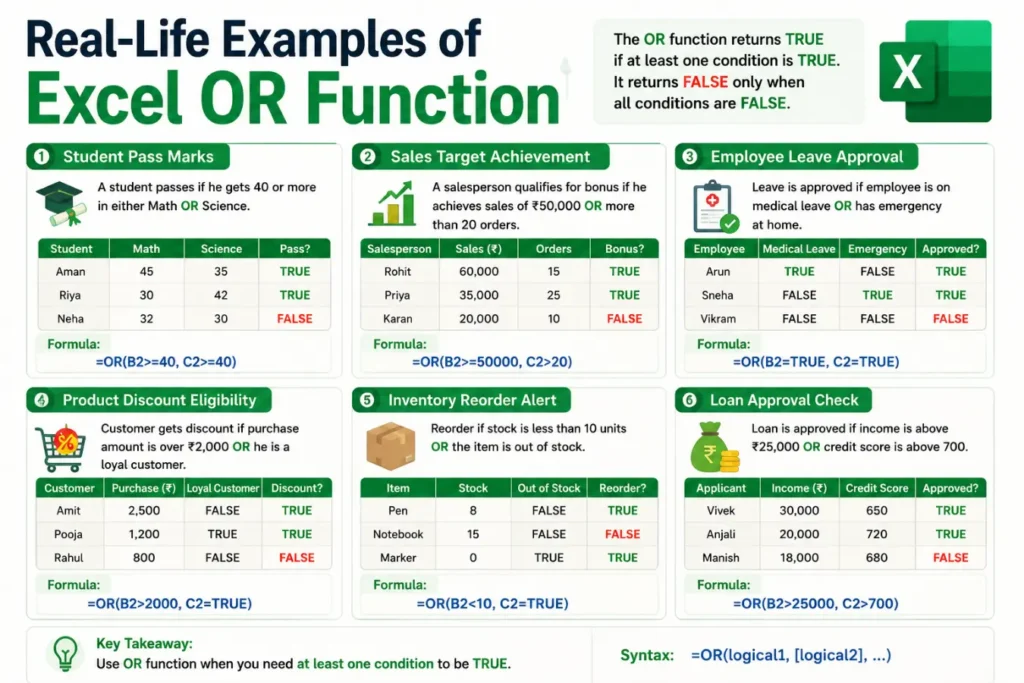
Real-Life Examples of Excel OR Function
Example 1: Student Grades
=OR(B2>=50,C2>=50)A student passes if either subject score is above 50.
Example 2: Sales Targets
=OR(B2>=10000,C2>=20)Sales staff qualify if:
- Sales exceed $10,000 OR
- They gain 20 customers
Example 3: Employee Eligibility
=OR(B2="Manager",C2>=5)Employees qualify if:
- Their position is Manager OR
- They have 5 years of experience
Excel OR Function vs AND Function
Many users confuse OR and AND.
Here is a simple comparison.
| Feature | OR Function | AND Function |
| Logic | Any condition true | All conditions true |
| Returns TRUE When | At least one condition is true | Every condition is true |
| Flexibility | More flexible | More restrictive |
| Common Use | Multiple possible criteria | Strict requirements |
Example
OR:
=OR(A1>10,B1>10)AND:
=AND(A1>10,B1>10)The OR function needs only one true result.
The AND function needs all results true.
Common Uses of Excel OR Function
The OR function appears in many business tasks.
Data Validation
Allow entries that meet one of several conditions.
Financial Analysis
Check different performance thresholds.
HR Management
Determine employee eligibility.
Education
Evaluate student performance.
Sales Tracking
Monitor multiple target achievements.
Inventory Control
Identify stock shortages quickly.
Common Mistakes When Using Excel OR Function
Many beginners make these errors.
Using Text Without Quotes
Incorrect:
=OR(A1=Yes)Correct:
=OR(A1="Yes")Confusing OR with AND
OR requires one true condition.
AND requires all conditions true.
Always choose the correct logic.
Incorrect Cell References
Double-check references before copying formulas.
Small mistakes can affect results.
Missing Parentheses
Incorrect:
=OR(A1>10,B1>20Correct:
=OR(A1>10,B1>20)Advanced Excel OR Function Examples
Multiple Conditions
=OR(A1>10,B1>20,C1>30,D1>40)Excel checks all four conditions.
OR Inside Nested IF
=IF(OR(A1="Gold",A1="Silver"),"Eligible","Not Eligible")This is useful for membership programs.
OR with Conditional Formatting
You can highlight cells when any condition is met.
Example:
- Value above 100
- Value below 10
This improves data visibility.
Tips and Tricks for Using Excel OR Function
Keep Formulas Simple
Short formulas are easier to maintain.
Combine with IF
This creates readable outputs.
Test Formulas First
Verify results before using them in reports.
Use Named Ranges
Named ranges improve readability.
Document Complex Logic
Add comments for future users.
Excel OR Function in Daily Life
The OR function models everyday decisions.
Examples include:
- Qualifying for discounts
- Meeting admission criteria
- Checking attendance requirements
- Evaluating performance goals
- Determining product availability
Many real-world decisions involve multiple possible conditions.
That is exactly where the OR function shines.
Synonyms and Related Excel Terms
These terms often appear alongside the Excel OR Function:
- Logical Function
- Excel Logical Test
- OR Formula in Excel
- IF OR Formula
- Boolean Logic
- Conditional Function
- Excel Decision Function
- TRUE and FALSE Functions
- Excel Formula Logic
- Multiple Criteria Formula
These related keywords help users understand the topic more deeply.
Expert Insights: Why the Excel OR Function Matters
Excel professionals rely on logical functions every day.
The OR function improves decision-making.
It reduces manual checking.
It also makes spreadsheets more dynamic.
When combined with IF, AND, and NOT functions, it becomes even more powerful.
Businesses use logical formulas to automate reporting, track performance, and reduce errors.
Learning the OR function is a key step toward advanced Excel skills.
(FAQs)
What does the Excel OR Function do?
It checks multiple conditions and returns TRUE if at least one condition is true.
How many conditions can OR test?
Modern Excel versions support up to 255 logical conditions.
Can OR work with IF?
Yes. OR is commonly combined with IF for decision-making formulas.
Example:
=IF(OR(A1>50,B1>50),"Pass","Fail")What is the difference between OR and AND?
OR requires one true condition.
AND requires all conditions to be true.
Can OR check text values?
Yes.
Example:
=OR(A1="Yes",A1="Approved")Does OR return text?
No.
OR returns only TRUE or FALSE.
Use IF to return custom text.
Can I use OR with conditional formatting?
Yes.
OR works well with conditional formatting rules.
Is the OR Function case-sensitive?
No.
Excel OR comparisons are generally not case-sensitive.
Conclusion
The Excel OR Function is a powerful logical tool that checks multiple conditions at once. It returns TRUE when at least one condition is met and FALSE when none are true. This simple behavior makes it useful for reporting, analysis, decision-making, and automation.
Whether you use Excel for school, work, or business, learning the OR function can improve accuracy and save valuable time. It becomes even more effective when combined with IF statements and other logical functions.
Start with simple formulas, practice real-life examples, and gradually build more advanced logic. Once you master the Excel OR Function, you will create smarter spreadsheets and make faster decisions with confidence.