The plus or minus alt code is the quickest way to type the ± symbol on a Windows computer. Many students, engineers, mathematicians, and office workers use this symbol every day. It helps show a value that can increase or decrease by a specific amount.
If you often work with formulas, measurements, or technical documents, knowing the plus or minus alt code can save time. Instead of copying and pasting the symbol, you can create it instantly from your keyboard.
In this guide, you will learn the correct alt code, keyboard shortcuts, practical examples, common mistakes, and expert tips. By the end, typing the ± symbol will become simple and fast.
Quick Summary Box
- Plus or Minus Symbol: ±
- Alt Code: Alt + 0177
- Unicode: U+00B1
- Windows Shortcut: Hold Alt and type 0177
- Mac Shortcut: Option + Shift + =
- Used For: Mathematics, measurements, engineering, statistics
- Meaning: A value can be positive or negative
What Is the Plus or Minus Alt Code?
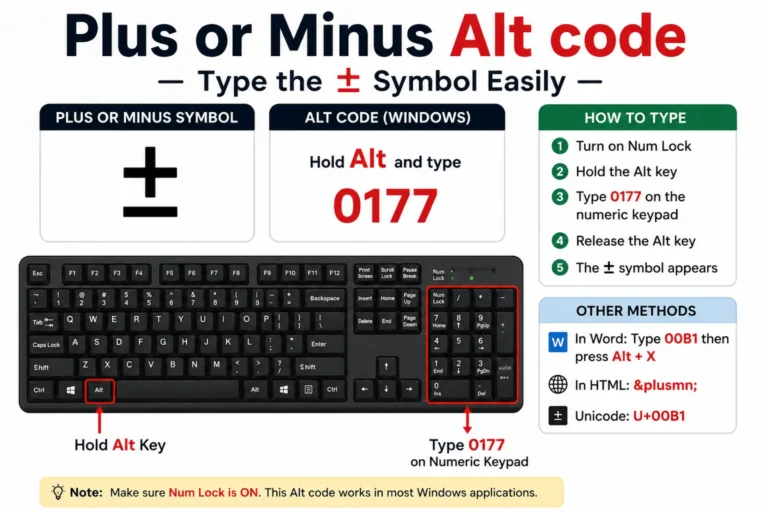
The plus or minus alt code is a keyboard shortcut used to type the ± symbol.
On Windows computers:
Alt + 0177 = ±
Simply hold the Alt key and type 0177 using the numeric keypad. Release Alt, and the symbol appears.
This shortcut works in many programs, including:
- Microsoft Word
- Excel
- PowerPoint
- Notepad
- Email applications
- Web browsers
What Does the ± Symbol Mean?
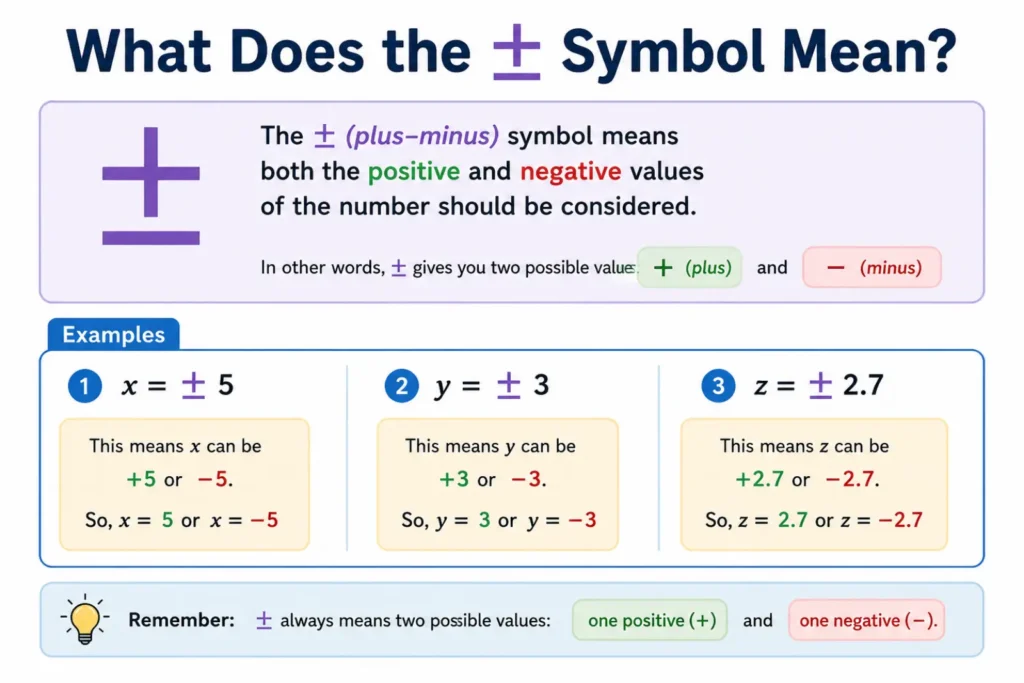
The ± symbol means “plus or minus.”
It shows that a value may be slightly higher or lower than a stated amount.
For example:
- 10 ± 2
- Temperature: 25°C ± 1°C
- Accuracy: 100 ± 5 units
This means the actual value can vary within a specific range.
How to Type the Plus or Minus Symbol Using Alt Code
Typing the symbol is simple when using Windows.
Steps
- Turn on Num Lock.
- Place the cursor where needed.
- Hold the Alt key.
- Type 0177 on the numeric keypad.
- Release Alt.
Result:
±
Shortcut
| Symbol | Alt Code |
|---|---|
| ± | Alt + 0177 |
Plus or Minus Alt Code on Different Devices
Different devices use different methods.
| Device | Shortcut |
| Windows | Alt + 0177 |
| Mac | Option + Shift + = |
| Microsoft Word | 00B1 + Alt + X |
| HTML | ± |
| Unicode | U+00B1 |
| Android | Long press symbols keyboard |
| iPhone | Use symbol keyboard or text replacement |
This table provides a quick reference for all major platforms.
Real-Life Examples of the Plus or Minus Symbol
The ± symbol appears in many situations.
Mathematics
5 ± 3
Possible values:
- 8
- 2
Science
Mass = 20g ± 0.5g
The actual mass may range between:
- 19.5g
- 20.5g
Engineering
Voltage = 220V ± 10V
The voltage can vary slightly while remaining acceptable.
Statistics
Average score = 75 ± 5
Most values fall within this range.
Why People Use the Plus or Minus Symbol
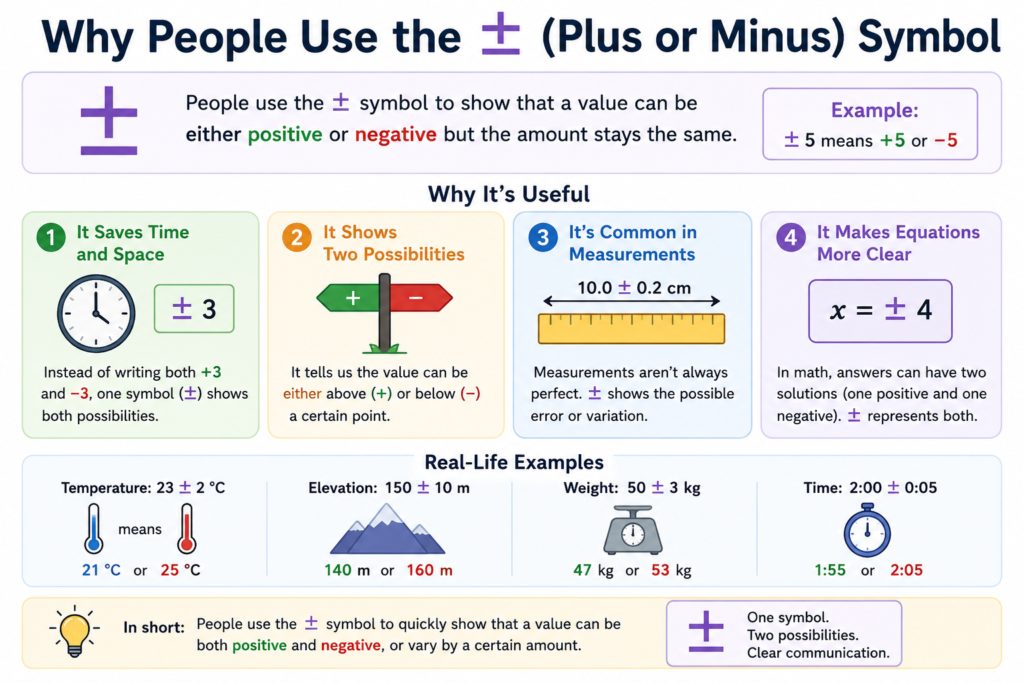
The symbol saves space and improves clarity.
Benefits include:
- Easier calculations
- Faster communication
- Better technical documentation
- Improved data accuracy presentation
- Reduced confusion in measurements
Without the symbol, explanations become longer and harder to read.
Plus or Minus Symbol vs Plus Sign
Many people confuse these symbols.
| Feature | Plus Sign (+) | Plus or Minus (±) |
| Meaning | Add values | Increase or decrease |
| Mathematical Use | Addition | Tolerance or variation |
| Symbol | + | ± |
| Example | 5 + 3 = 8 | 5 ± 3 |
The plus sign performs addition. The plus or minus symbol represents possible variation.
Common Mistakes When Using the Plus or Minus Alt Code
Many users face problems when entering the symbol.
Using the Top Number Row
The alt code works only with the numeric keypad.
Num Lock Is Off
The shortcut may fail if Num Lock is disabled.
Missing Leading Zero
Typing Alt + 177 may not work on some systems.
Use:
Alt + 0177
Laptop Keyboard Issues
Some laptops lack a dedicated numeric keypad.
In that case:
- Use Character Map
- Use Unicode methods
- Use copy and paste
Alternative Ways to Insert the ± Symbol
If the alt code does not work, try other methods.
Copy and Paste
Simply copy:
±
Character Map
Windows includes a Character Map utility.
Steps:
- Open Character Map.
- Search for ±.
- Copy and insert.
Unicode Method
In Microsoft Word:
- Type 00B1
- Press Alt + X
The code changes into ±.
Plus or Minus Symbol in Microsoft Word
Microsoft Word offers several options.
Method 1: Alt Code
Alt + 0177
Method 2: Unicode
00B1 + Alt + X
Method 3: Insert Symbol
- Click Insert
- Select Symbol
- Choose ±
Word users often prefer the Unicode method because it is fast and reliable.
Plus or Minus Symbol in Excel
Excel supports the same alt code.
Steps
- Select a cell.
- Hold Alt.
- Type 0177.
- Release Alt.
You can use the symbol in:
- Formulas
- Reports
- Measurement tables
- Statistical summaries
Related Symbols and Alt Codes
Many users search for related keyboard symbols.
| Symbol | Meaning | Alt Code |
| ± | Plus or Minus | Alt + 0177 |
| ÷ | Division | Alt + 0247 |
| × | Multiplication | Alt + 0215 |
| ° | Degree | Alt + 0176 |
| √ | Square Root | Alt + 251 |
Learning these shortcuts can improve productivity.
Synonyms and Related Search Terms
People often search for similar keywords.
LSI Keywords
- plus minus symbol alt code
- type plus minus symbol
- ± keyboard shortcut
- plus minus sign shortcut
- insert ± symbol
- plus or minus character code
- unicode plus minus sign
- keyboard symbols list
- mathematical symbol shortcuts
- special character alt codes
These terms relate closely to the main keyword.
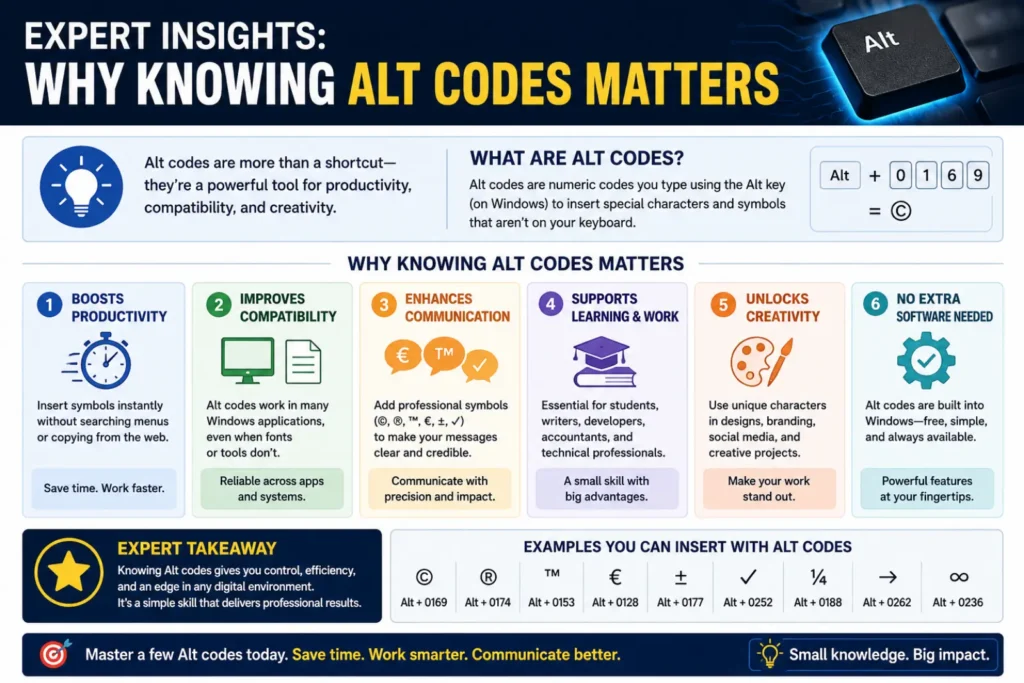
Expert Insights: Why Knowing Alt Codes Matters
Keyboard shortcuts improve efficiency.
Professionals who use symbols frequently can save hours each year. Engineers, researchers, students, and data analysts often rely on special characters.
The plus or minus alt code remains one of the most useful shortcuts because the symbol appears across many fields.
Knowing a few important alt codes reduces interruptions and improves workflow.
For technical writing, speed and accuracy matter. Keyboard shortcuts help achieve bot
(FAQs)
What is the plus or minus alt code?
The plus or minus alt code is Alt + 0177 on Windows.
How do I type the ± symbol without a numeric keypad?
Use Character Map, Unicode, or copy and paste the symbol.
Does Alt + 177 work?
It may work on some systems, but Alt + 0177 is more reliable.
What is the Mac shortcut for ±?
Press Option + Shift + =.
What does ± mean in math?
It means a value can be either added or subtracted.
Can I use the plus or minus symbol in Excel?
Yes. Excel supports Alt + 0177.
What is the Unicode for ±?
The Unicode value is U+00B1.
Why is my alt code not working?
Check that Num Lock is enabled and use the numeric keypad.
Internal Linking Suggestions
For better SEO, link this article to related content:
- Complete Alt Codes List
- Mathematical Symbols Guide
- Keyboard Shortcuts for Windows
- Excel Special Character Shortcuts
- Unicode Symbols Explained
These links help users find related information and improve site engagement.
Conclusion
The plus or minus alt code is a simple but powerful keyboard shortcut. By using Alt + 0177, you can quickly insert the ± symbol into documents, spreadsheets, emails, and technical reports. This symbol plays an important role in mathematics, science, engineering, and statistics because it shows possible variation around a value.
Whether you use Windows, Mac, Word, or Excel, several methods make typing the symbol easy. Learning this shortcut can save time and improve accuracy in your work. Keep the code handy, practice it a few times, and it will soon become part of your everyday workflow. The next time you need the ± symbol, you will know exactly how to type it.