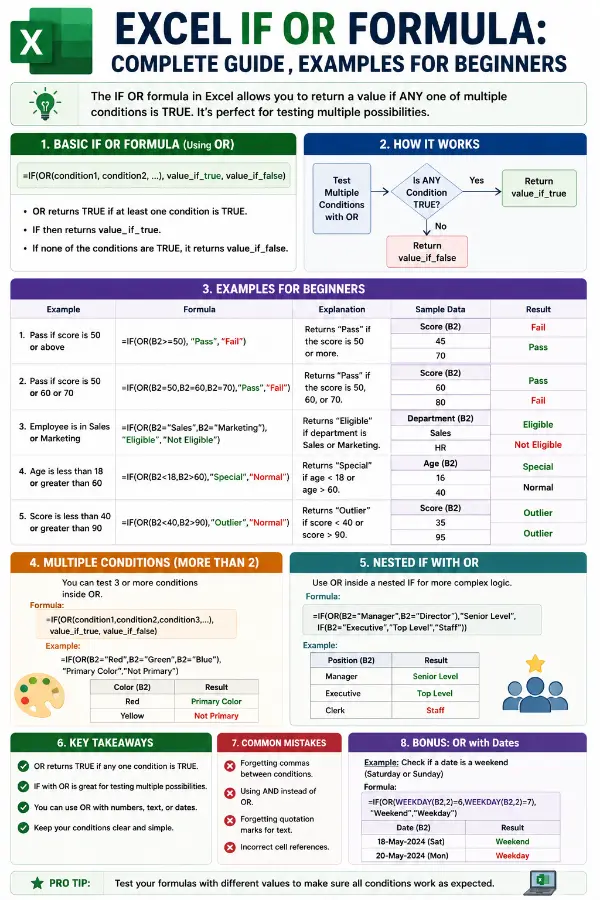
Excel IF OR is one of the most useful formulas in Microsoft Excel. It helps you test multiple conditions at the same time. If any condition is true, Excel returns a result.
Many users struggle when checking more than one condition in a formula. That is where the IF and OR functions work together.
This formula saves time and improves accuracy. You can use it for grades, sales reports, attendance tracking, and many other tasks.
In this guide, you will learn what Excel IF OR means, how it works, and when to use it. You will also see real-life examples, common mistakes, and expert tips.
By the end, you will feel confident using Excel IF OR in your spreadsheets.
Quick Summary Box
- Excel IF OR combines the IF function with the OR function.
- OR checks multiple conditions.
- IF returns a value based on the result.
- If any condition is TRUE, OR returns TRUE.
- Common formula:
=IF(OR(condition1, condition2), value_if_true, value_if_false) - Useful for reports, grading systems, and business data.
- Saves time when testing multiple criteria.
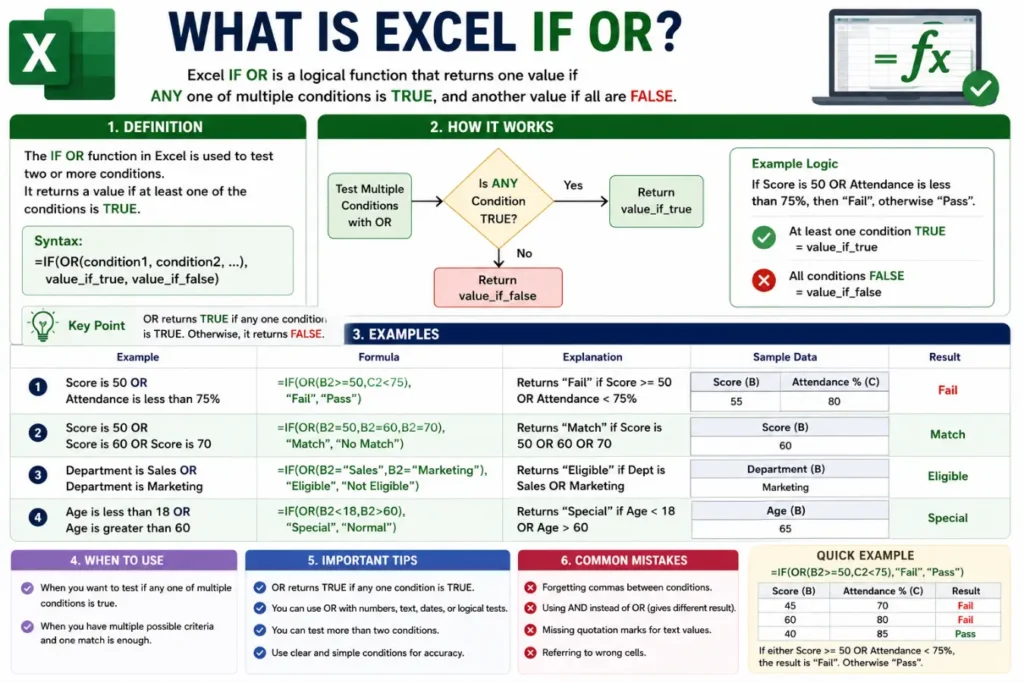
What Is Excel IF OR?
Excel IF OR is a combination of two functions:
- IF Function – Tests a condition.
- OR Function – Checks multiple conditions.
The OR function returns TRUE if at least one condition is true.
The IF function then performs an action based on that result.
Basic Syntax
=IF(OR(condition1, condition2), value_if_true, value_if_false)Example
=IF(OR(A1>50,B1>50),"Pass","Fail")Result:
- Pass if A1 is greater than 50.
- Pass if B1 is greater than 50.
- Fail if both are 50 or less.
How the IF Function Works
The IF function helps Excel make decisions.
Syntax
=IF(logical_test, value_if_true, value_if_false)Example
=IF(A1>=60,"Pass","Fail")If A1 contains 60 or more, Excel returns “Pass”.
Otherwise, it returns “Fail”.
How the OR Function Works
The OR function checks multiple conditions.
Syntax
=OR(condition1, condition2, condition3)Example
=OR(A1>100,B1>100)Result:
- TRUE if either condition is true.
- FALSE if all conditions are false.
How Excel IF OR Works Together
When combined, OR first evaluates the conditions.
Then IF decides what result to show.
Formula
=IF(OR(A1="Yes",B1="Yes"),"Approved","Rejected")Result
- Approved if A1 or B1 contains Yes.
- Rejected if neither cell contains Yes.
This approach reduces the need for multiple nested formulas.
Real-Life Examples of Excel IF OR
Example 1: Student Grades
A student passes if they score above 50 in either subject.
=IF(OR(A2>50,B2>50),"Pass","Fail")Example 2: Employee Attendance
An employee qualifies if attendance exceeds 90% or productivity exceeds 80%.
=IF(OR(A2>90,B2>80),"Eligible","Not Eligible")Example 3: Sales Bonus
A salesperson receives a bonus if monthly sales exceed $10,000 or they gain 20 new customers.
=IF(OR(A2>10000,B2>=20),"Bonus","No Bonus")Example 4: Inventory Management
A product needs restocking if stock falls below 10 units or sales demand rises above 100.
=IF(OR(A2<10,B2>100),"Restock","OK")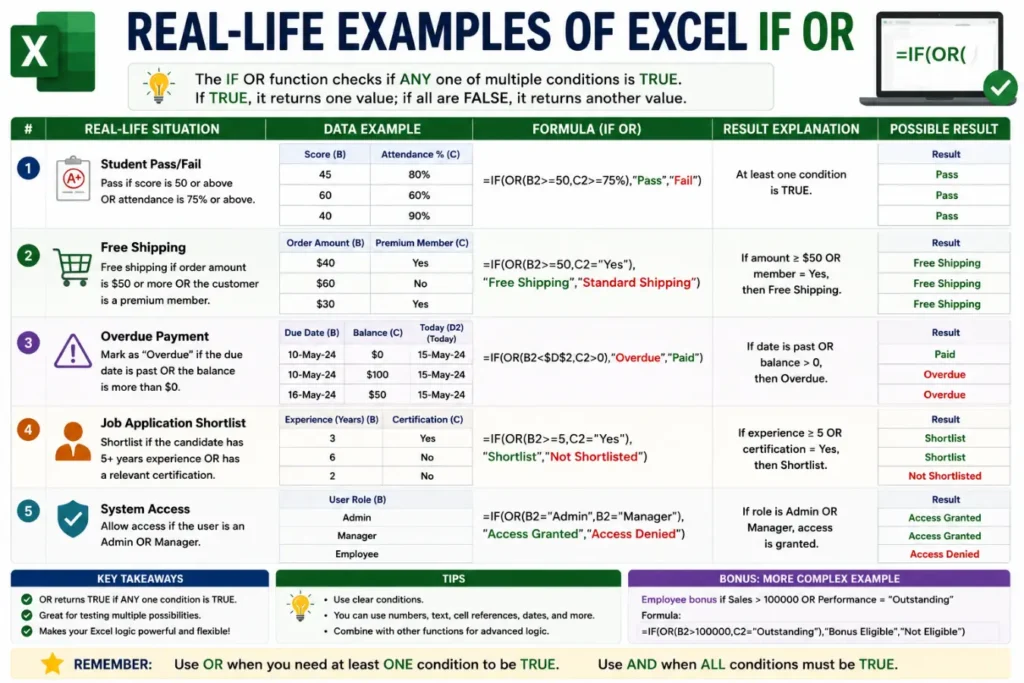
Excel IF OR vs IF AND
Many users confuse OR and AND.
The difference is simple.
| Feature | IF OR | IF AND |
|---|---|---|
| Conditions Needed | Any one condition | All conditions |
| Returns TRUE | When at least one condition is true | When every condition is true |
| Flexibility | More flexible | More strict |
| Common Use | Alternative requirements | Mandatory requirements |
IF OR Example
=IF(OR(A1>50,B1>50),"Pass","Fail")IF AND Example
=IF(AND(A1>50,B1>50),"Pass","Fail")Benefits of Using Excel IF OR
Using Excel IF OR offers several advantages.
Saves Time
You avoid creating multiple separate formulas.
Improves Accuracy
Excel handles conditions automatically.
Easy Decision Making
The formula quickly identifies qualifying records.
Flexible Logic
Only one condition needs to be true.
Better Reporting
You can automate business reports and dashboards.
Common Mistakes When Using Excel IF OR
Many errors occur because of small syntax issues.
Missing Parentheses
Incorrect:
=IF(OR(A1>50,B1>50,"Pass","Fail")Correct:
=IF(OR(A1>50,B1>50),"Pass","Fail")Using Text Without Quotes
Incorrect:
=IF(OR(A1=Yes,B1=Yes),"Approved","Rejected")Correct:
=IF(OR(A1="Yes",B1="Yes"),"Approved","Rejected")Confusing OR with AND
Remember:
- OR = any condition
- AND = all conditions
Incorrect Cell References
Double-check every reference before copying formulas.
Advanced Excel IF OR Examples
Multiple Conditions
=IF(OR(A1>50,B1>50,C1>50,D1>50),"Pass","Fail")Any score above 50 results in Pass.
Combining IF, OR, and AND
=IF(AND(A1>50,OR(B1>50,C1>50)),"Pass","Fail")Conditions:
- A1 must exceed 50.
- Either B1 or C1 must exceed 50.
Text-Based Conditions
=IF(OR(A1="Red",A1="Blue"),"Valid","Invalid")Useful for category validation.
Tips and Tricks for Excel IF OR
Keep Formulas Simple
Simple formulas are easier to maintain.
Use Named Ranges
Named ranges improve readability.
Test Each Condition
Check the OR function separately before combining it.
Use Formula Auditing Tools
Excel provides built-in auditing features.
Add Comments
Document complex formulas for future reference.
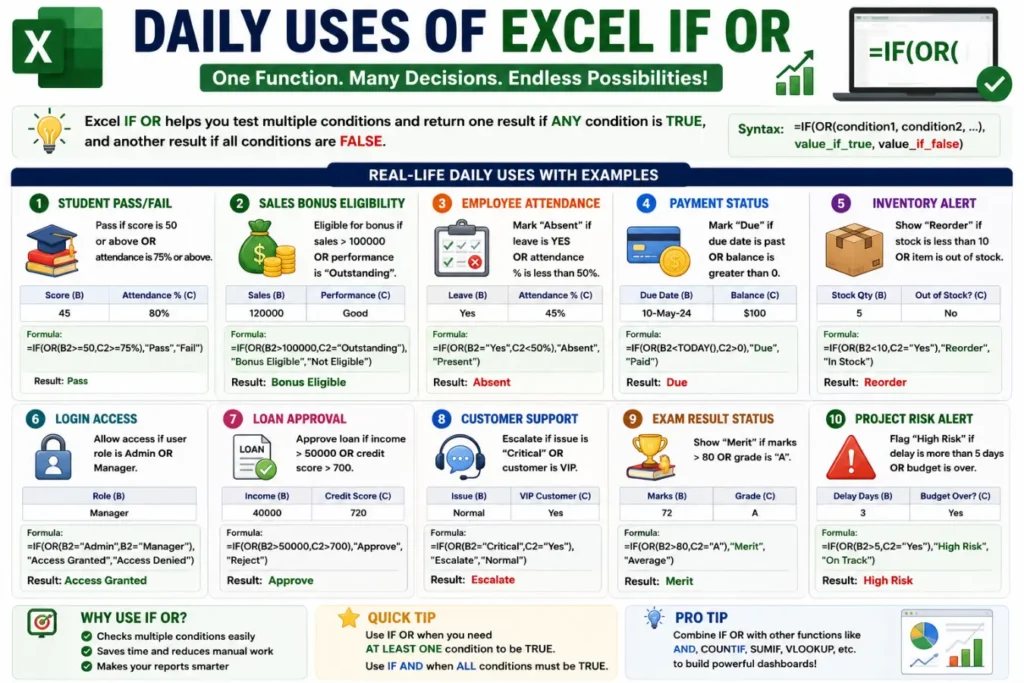
Daily Uses of Excel IF OR
Excel IF OR appears in many everyday tasks.
Education
- Student grading
- Attendance tracking
Finance
- Budget analysis
- Loan qualification
Human Resources
- Employee performance reviews
- Bonus calculations
Sales
- Commission eligibility
- Sales targets
Inventory
- Stock alerts
- Reorder notifications
Excel IF OR Synonyms and Related Terms
These related keywords help users understand the topic better.
LSI Keywords
- Excel IF OR formula
- IF OR function in Excel
- Excel logical functions
- Excel conditional formula
- Excel OR statement
- Excel multiple conditions
- Excel formula examples
- IF function with OR
- Excel decision-making formulas
- Excel logical test
Expert Insights
Experienced Excel users rely heavily on IF OR formulas.
Here are some expert recommendations:
- Start with simple conditions.
- Verify results with sample data.
- Avoid deeply nested formulas.
- Combine IF OR with AND for advanced logic.
- Use tables to organize data clearly.
The ability to evaluate multiple conditions makes Excel IF OR valuable in business analysis and reporting.
Companies often use these formulas in dashboards and automated reports.
(FAQs)
What does Excel IF OR do?
It checks multiple conditions and returns a result if any condition is true.
Can IF OR test more than two conditions?
Yes. You can test many conditions within the OR function.
Example:
=OR(A1>10,B1>10,C1>10,D1>10)What is the difference between OR and AND in Excel?
OR requires one true condition.
AND requires all conditions to be true.
Can I use text with Excel IF OR?
Yes.
Example:
=IF(OR(A1="Yes",B1="Yes"),"Approved","Rejected")Why does my IF OR formula show an error?
Common reasons include:
- Missing parentheses
- Incorrect cell references
- Missing quotation marks
Can I combine IF OR with other functions?
Yes.
You can combine it with:
- AND
- COUNTIF
- SUMIF
- VLOOKUP
- XLOOKUP
Is Excel IF OR case-sensitive?
No.
Excel treats uppercase and lowercase text as the same in most IF OR formulas.
When should I use IF OR instead of nested IF statements?
Use IF OR when multiple conditions can lead to the same result.
It makes formulas shorter and easier to read.
Featured Snippet Answer
What Is Excel IF OR?
Excel IF OR combines the IF and OR functions. The OR function checks multiple conditions and returns TRUE if any condition is met. The IF function then returns a specified result based on that TRUE or FALSE value. The basic syntax is:
=IF(OR(condition1, condition2), value_if_true, value_if_false)Conclusion
Excel IF OR is a powerful formula for evaluating multiple conditions at once. It combines the flexibility of the OR function with the decision-making ability of the IF function. This makes spreadsheet tasks faster and more accurate.
Whether you manage grades, sales data, employee records, or inventory, Excel IF OR can simplify your work. The formula is easy to learn and highly practical. Start with basic examples and then move to advanced combinations with AND and other functions.
Mastering Excel IF OR will help you build smarter spreadsheets and improve your productivity every day.