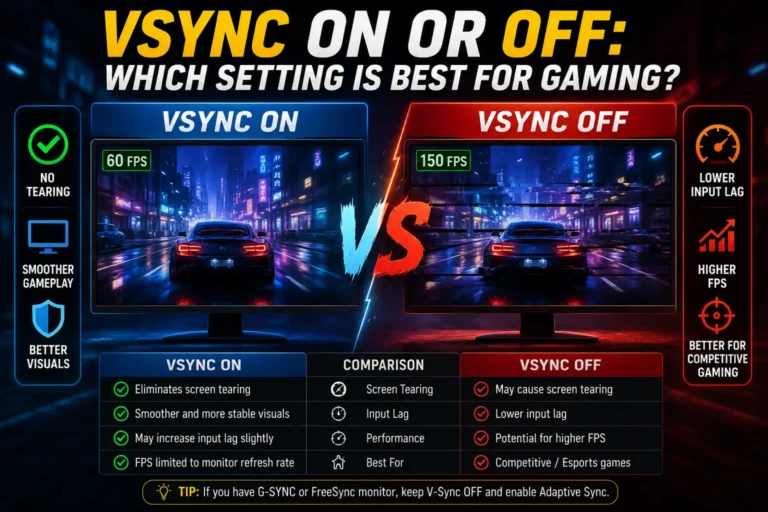
VSync on or off is a common question among PC and console gamers. Many players want smooth gameplay without screen tearing. However, they also want the lowest input lag. That makes choosing the right VSync setting important.
VSync is a graphics setting found in most games. It matches your game’s frame rate with your monitor’s refresh rate. This helps reduce visual problems during gameplay. Still, it may also affect performance.
The best choice depends on your hardware, monitor, and the games you play. In this guide, you will learn what VSync does, when to turn it on, and when to turn it off. You will also discover common mistakes, expert tips, and practical examples to help you choose the best setting.
Quick Summary Box
- VSync stands for Vertical Synchronization.
- It matches your game’s frame rate to your monitor’s refresh rate.
- It helps prevent screen tearing.
- Turning VSync On improves visual quality.
- Turning VSync Off lowers input lag.
- Competitive gamers often prefer VSync Off.
- Casual and story-based gamers usually enjoy VSync On.
- Adaptive Sync technologies like G-Sync and FreeSync often work better than traditional VSync.
What Is VSync?
VSync, or Vertical Synchronization, is a graphics feature that syncs your GPU with your monitor.
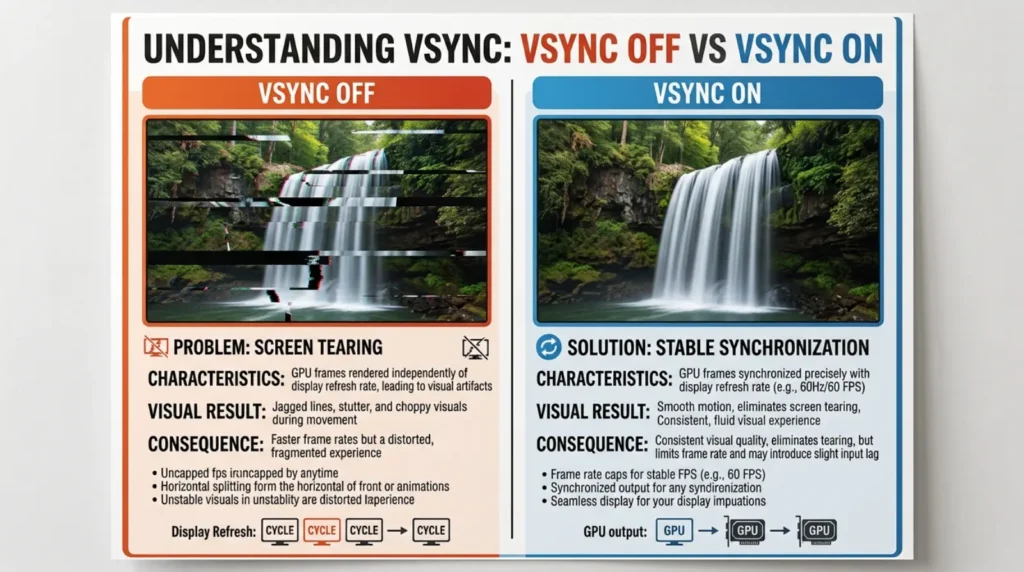
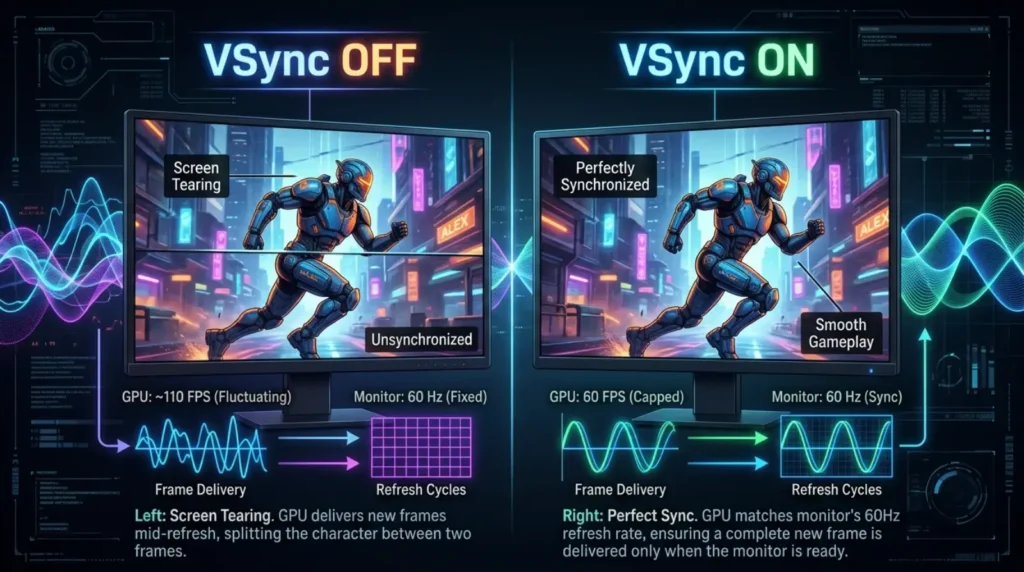
Your graphics card creates frames. Your monitor displays them. If they work at different speeds, the image may tear across the screen.
VSync solves this problem by making the graphics card wait for the monitor before showing a new frame.
Simple Example
Imagine two people passing a ball.
- One throws too fast.
- The other catches slowly.
Some balls get dropped.
VSync makes both people move at the same speed.
How Does VSync Work?
A monitor refreshes the image many times every second.
For example:
- 60Hz monitor = 60 refreshes per second
- 120Hz monitor = 120 refreshes per second
- 144Hz monitor = 144 refreshes per second
If your GPU creates more frames than the monitor can display, screen tearing happens.
VSync limits the frame rate to the monitor’s refresh rate.
Example:
- GPU produces 150 FPS
- Monitor refreshes at 60Hz
- VSync locks the game near 60 FPS
VSync On vs Off: Comparison Table
| Feature | VSync On | VSync Off |
|---|---|---|
| Screen Tearing | No | Yes |
| Input Lag | Higher | Lower |
| Smooth Gameplay | Better | Can vary |
| Frame Rate | Limited | Unlimited |
| Best For | Story games | Competitive games |
| GPU Usage | Lower | Higher |
| Visual Quality | Better | May show tearing |
| Fast Reactions | Slightly slower | Faster |
When Should You Turn VSync On?
VSync works best when image quality matters most.
Turn it on if you:
- Play single-player games
- Notice screen tearing
- Have a 60Hz monitor
- Prefer smooth visuals
- Do not play competitive games
Example
You are exploring a beautiful open-world game.
The scenery looks much smoother with VSync enabled.
When Should You Turn VSync Off?
Competitive players usually disable VSync.
Turn it off if you:
- Play esports games
- Want the fastest response time
- Have a high refresh rate monitor
- Use G-Sync or FreeSync
- Need the highest FPS possible
Example
You play Valorant or Counter-Strike.
Every millisecond matters.
Lower input lag helps improve reaction time.
Benefits of Turning VSync On
VSync offers several advantages.
Reduces Screen Tearing
This is its biggest benefit.
Images stay clean and connected.
Creates Smoother Motion
Camera movement looks more natural.
Improves Visual Experience
Games appear more polished.
Reduces GPU Stress
Your graphics card renders fewer unnecessary frames.
Drawbacks of Turning VSync On
VSync is not perfect.
Input Lag
Mouse and keyboard actions feel slightly delayed.
FPS Drops
If your system cannot maintain the refresh rate, FPS may suddenly fall.
Less Responsive Gameplay
Fast-paced games may feel slower.
Benefits of Turning VSync Off
Many gamers prefer this option.
Lower Input Lag
Controls respond faster.
Higher FPS
Your GPU runs without limits.
Better for Competitive Gaming
Quick reactions become easier.
Drawbacks of Turning VSync Off
There are also disadvantages.
Screen Tearing
The image may split during movement.
Higher GPU Usage
The graphics card works harder.
More Heat
Higher FPS often increases temperatures.
VSync vs G-Sync vs FreeSync
Modern monitors include newer synchronization technologies.
| Feature | VSync | G-Sync | FreeSync |
| Removes Tearing | Yes | Yes | Yes |
| Input Lag | Moderate | Very Low | Very Low |
| Dynamic Refresh Rate | No | Yes | Yes |
| Hardware Needed | None | NVIDIA Compatible Monitor | AMD Compatible Monitor |
| Overall Gaming Experience | Good | Excellent | Excellent |
If your monitor supports G-Sync or FreeSync, they usually provide a better experience than traditional VSync.
Real-Life Examples
Example 1: Casual Gamer
Sarah enjoys adventure games.
She enables VSync.
The graphics look smoother.
She barely notices input lag.
Example 2: Competitive Gamer
Alex plays Apex Legends every day.
He disables VSync.
His controls feel faster.
He accepts a little screen tearing.
Example 3: High-End Gaming PC
Emma owns a 240Hz monitor with G-Sync.
She keeps VSync off because G-Sync handles synchronization more efficiently.
Common Mistakes to Avoid
Many players choose the wrong setting.
Avoid these mistakes.
Leaving VSync On During Esports
Fast shooters need quick reactions.
Disable VSync for competitive matches.
Ignoring Monitor Refresh Rate
A 144Hz monitor behaves differently than a 60Hz display.
Forgetting About G-Sync or FreeSync
These technologies often replace traditional VSync.
Expecting More FPS With VSync On
VSync limits frame rates.
Higher FPS is not its goal.
Tips for Choosing the Best Setting
Follow these simple tips.
- Test both settings.
- Check input lag.
- Watch for screen tearing.
- Update graphics drivers.
- Use G-Sync or FreeSync if available.
- Match game settings to your monitor.
- Monitor frame rates using FPS software.
- Choose comfort over maximum FPS.
Where Is VSync Used in Daily Life?
Many people use VSync without realizing it.
It appears in:
- PC games
- Console games
- Game emulators
- Graphics software
- Gaming laptops
- Gaming monitors
- VR applications
Synonyms and Related Keywords
Use these related search terms when learning about VSync.
Synonyms
- Vertical Synchronization
- Frame synchronization
- Display synchronization
Related Keywords
- screen tearing fix
- VSync settings
- should I use VSync
- VSync gaming
- input lag
- FPS limiter
- refresh rate
- monitor refresh rate
- adaptive sync
- G-Sync vs VSync
- FreeSync vs VSync
- reduce screen tearing
- best graphics settings
- gaming performance settings
Expert Insights
Professional gamers often disable VSync because lower input lag improves reaction speed.
However, many casual gamers prefer smoother visuals over tiny performance gains.
The best setting depends on your monitor, graphics card, and favorite games.
If your monitor supports adaptive sync technology, use it whenever possible.
Testing different settings in your favorite games is the most reliable way to find the perfect balance.
(FAQs)
Is VSync good for gaming?
Yes. It removes screen tearing and improves visual smoothness. However, it may increase input lag.
Should I turn VSync on or off?
Turn it on for story games. Turn it off for competitive games where quick reactions matter.
Does VSync reduce FPS?
Yes. It usually limits FPS to your monitor’s refresh rate.
Does VSync cause input lag?
Yes. Traditional VSync adds a small amount of input lag.
Is VSync better than G-Sync?
No. G-Sync usually provides smoother gameplay with much lower input lag.
Should I use VSync on a 144Hz monitor?
Many gamers leave it off, especially if they use G-Sync or FreeSync.
Can VSync stop screen tearing?
Yes. Preventing screen tearing is its main purpose.
Does VSync improve graphics quality?
It does not improve textures or resolution. It only makes motion appear smoother.
Conclusion
Choosing VSync on or off depends on what matters most to you. If you want smooth visuals and hate screen tearing, turning VSync on is usually the better choice. If you play fast-paced competitive games and need the quickest response time, turning VSync off often delivers better performance. Players with G-Sync or FreeSync monitors can enjoy smooth gameplay with less input lag than traditional VSync. The ideal setting varies by game, monitor, and graphics hardware. Try both options in your favorite games and compare the results. A few minutes of testing can help you find the perfect balance between image quality, responsiveness, and overall gaming performance.